

Platform
Try new features early in Settings ▸ Labs
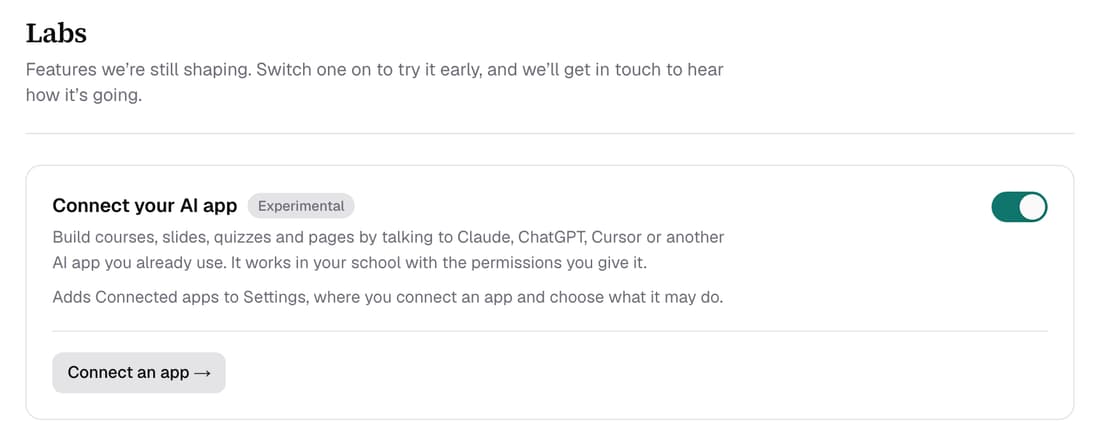
Labs lists features we're still building that you can switch on for your own school. The first one connects an AI app you already use, such as Claude or ChatGPT, so it can build and edit your courses, slides and pages. Switching it off takes one click.
What’s changed
Before, an early feature reached your school only when the Knola team switched it on for you. Now you can see what's being built and switch it on yourself.
Who gets itEvery school
How it works
- Go to Settings ▸ Labs. Each feature has its own card and switch.
- Turn on the switch for Connect your AI app.
- Tick the box to say we can get in touch, then click Switch on.
- Click Connect an app to set it up in Settings ▸ Connected apps.
- To stop, turn the switch off. Connected apps leaves Settings straight away.
Good to know
- Only the school's owner or an admin can switch a Labs feature on or off, and it applies to the whole school.
- Labs features are still being built, so they may change. Switching one on means we may get in touch to ask how it's going.
- For each connected app you can set Drafts only, a monthly limit on AI credits, which emails it may send and which courses it may change. Only the school's owner can change these limits.
- When a feature is ready for every school, it leaves Labs and is simply on.