

How to show your slides to students
Slides start private. Put them on the lesson page so students can click through them in your theme, with your script underneath if you want.

 By Knola3 min read
Some lessons work best as slides students can click through at their own pace, with or without a video. Slides you make are private until you choose to show them.
See who sees them now
On the lesson, the slides card says Only you see these until students can see them, and In the lesson once they can. The contents strip at the top shows the same, for example "7 · only you".
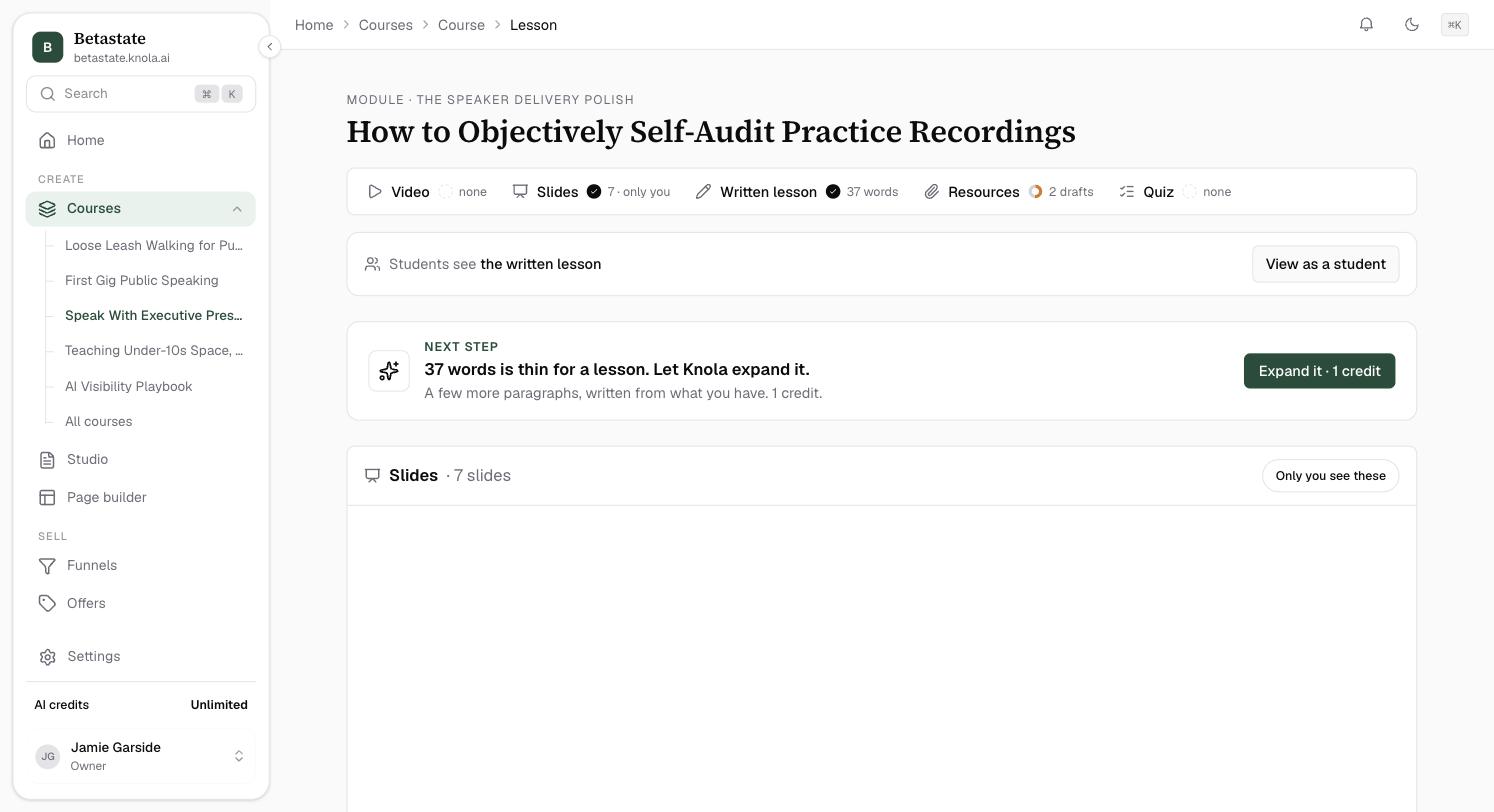
Add them for students
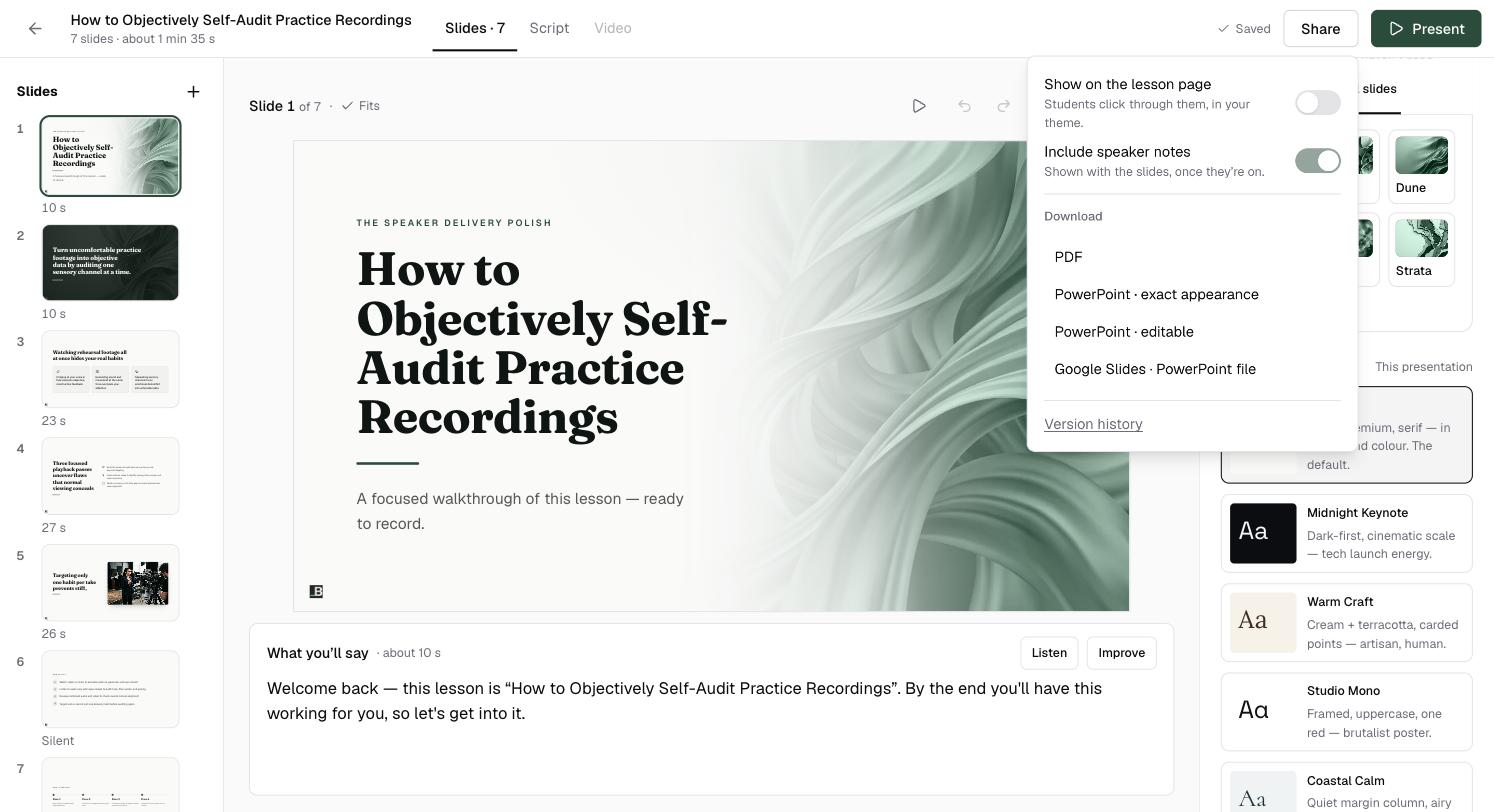
Click Add for students on the lesson, or open the slides and switch on Show on the lesson page in the Share menu: "Students click through them, in your theme."
Include speaker notes, or Show my script under each slide, shows your "What you'll say" under each slide. As it says, that is useful when there is no video.
Knola confirms with "Added. Students see the slides in the lesson."
What students get
Students get a Slides option on the lesson alongside Watch and Read, and click through the slides in your theme, readable on a phone. When the lesson also has a narrated video, the slides follow what the video shows; your edits reach students when you publish the updated video.
To take them off again, choose Stop showing them: "Taken off. Students no longer see the slides."
Can students download my slides?
No. Showing slides lets students click through them on the lesson page. Downloading is for you, from the Share menu.
Do I need a video to show slides?
No. Slides on their own work well, especially with your script shown under each one.