

How to present your slides and export them
Present full screen with a floating teleprompter for your notes, or download the slides as a PDF, an editable PowerPoint or a file for Google Slides.

 By Knola3 min read
Your slides are not tied to Knola. Present them live or for a recording, or take them anywhere as a file.
Present full screen
Open the slides and click Present, or Present on the lesson's slides card. The slides fill the screen; use the arrow keys to move on and back, and Escape to stop.
Notes ↗ opens your presenter notes in a floating teleprompter. It hovers over the full-screen slides and stays out of tab recordings, so record the browser tab rather than the whole screen and your notes will not appear in the video.
Download the slides
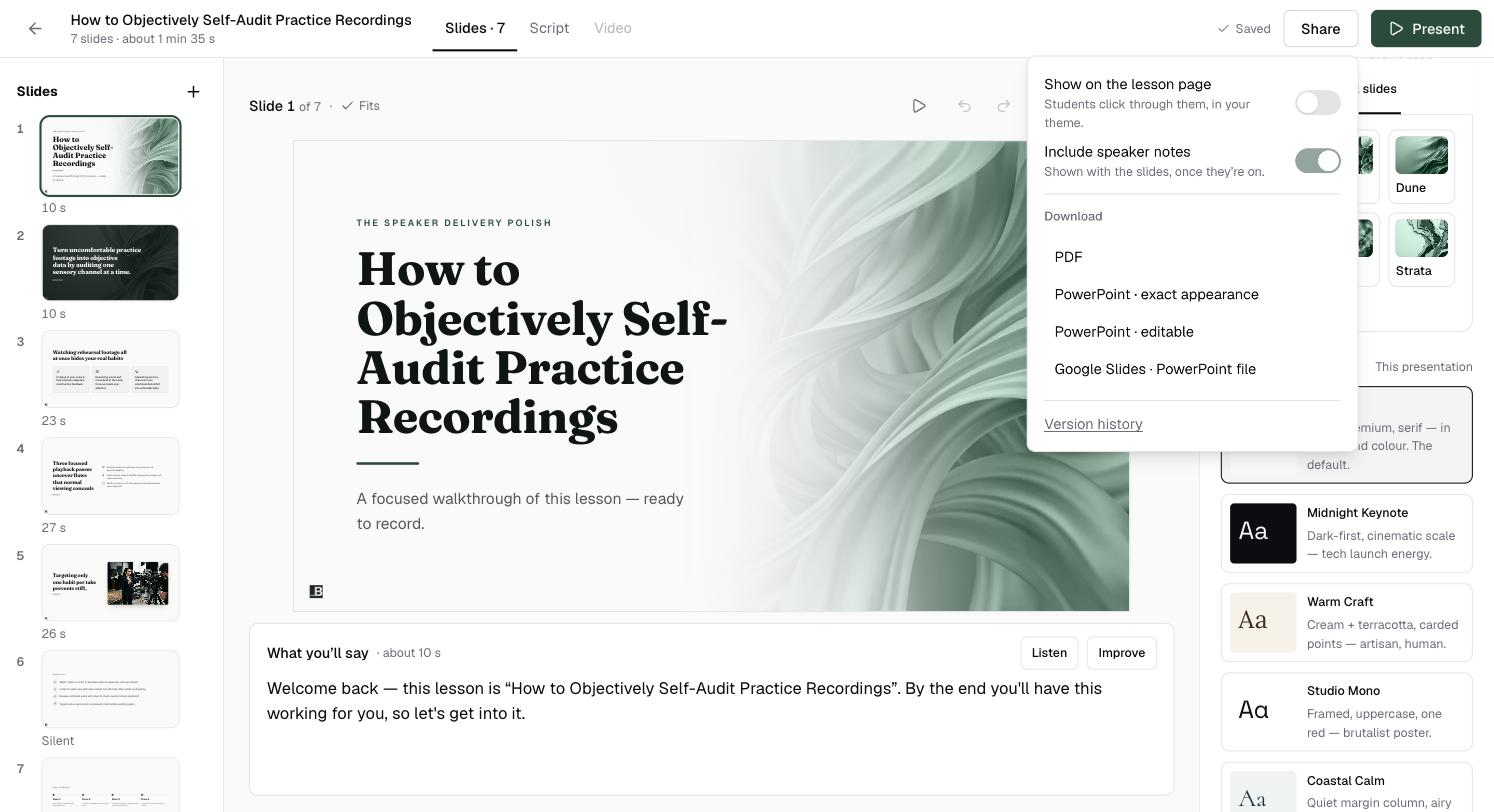
Click Share in the slide editor. Under Download you can choose:
- PDF: for printing or sending.
- PowerPoint · exact appearance: looks exactly like your slides.
- PowerPoint · editable: every word and shape editable in PowerPoint.
- Google Slides · PowerPoint file: a file made to open cleanly in Google Slides.
Include speaker notes in the same menu decides whether your "What you'll say" goes with the file. The lesson's slides card has a Download button with PDF and PowerPoint too.
Can I record myself presenting the slides?
Yes. Click Present, open Notes ↗ for your script, and record the browser tab. Or let Knola narrate them for you: see How to make a narrated video.
Which PowerPoint should I choose?
Exact appearance if you just want to present or share it. Editable if you plan to change the slides in PowerPoint.