

How to make a narrated video from your lesson with AI
Turn a lesson's slides into a narrated video: read the whole script, listen to each slide, preview it for free, then let Knola make the video.

 By Knola5 min read
You do not need to record yourself to give a lesson a video. Once a lesson has slides, Knola writes what to say over each one, reads it in the narrator voice you choose, and makes a finished video with captions. You read and change every word before anything is made.
Start from a lesson that has slides
Open the lesson. A lesson made with Create with AI already has slides; if yours does not yet, see How to build slides from a lesson first.
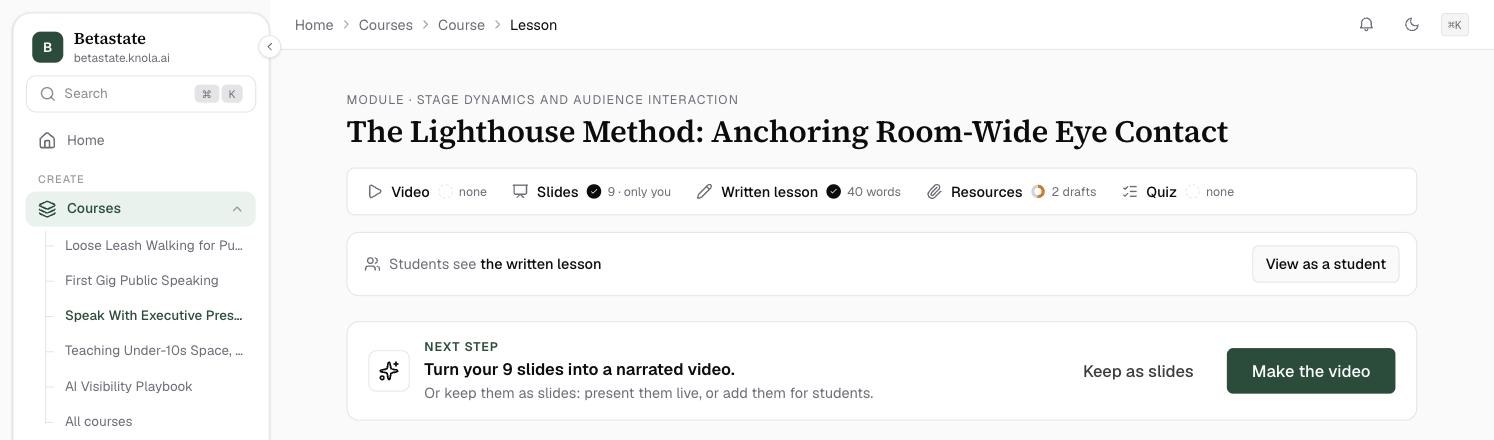
Once the slides are made, the top of the lesson shows a Next step card, just above your slides: "Turn your 9 slides into a narrated video." (with your own number of slides). Click Make the video. Knola writes the script, which takes about a minute, then opens it for you to read.
Not ready for a video? Keep as slides keeps them as they are: you can present them live, or add them for students.
Or start it from More for this lesson
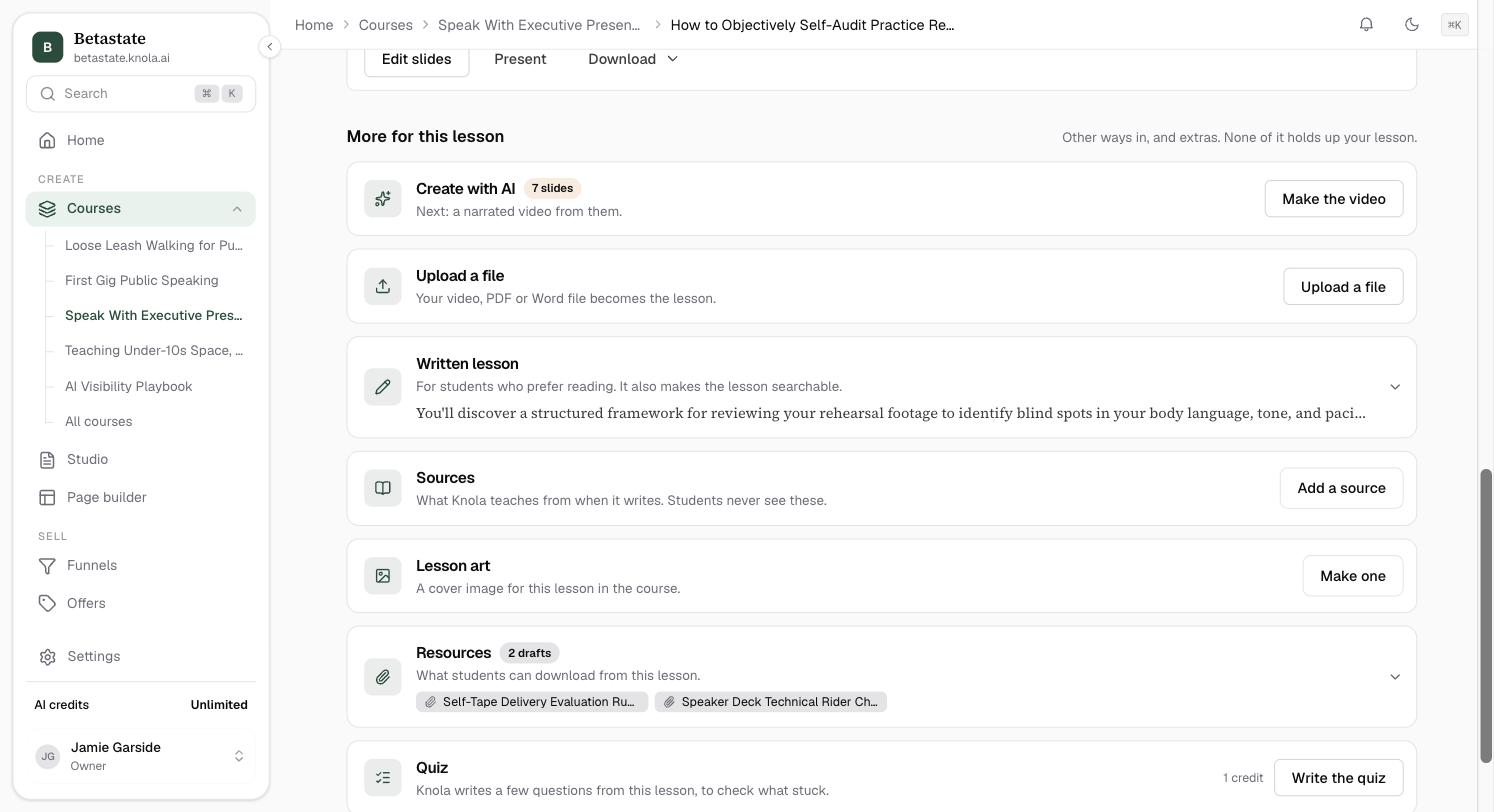
The same button is also further down the page, so you can find it again later. Under More for this lesson, the Create with AI row says what comes next: "Next: a narrated video from them." Click Make the video there. It does exactly the same thing, so use whichever you see first.
If you already started a script, the Next step card says Check the script instead, and opens the script where you left it. The Create with AI row then reads Video started.
Read the whole script
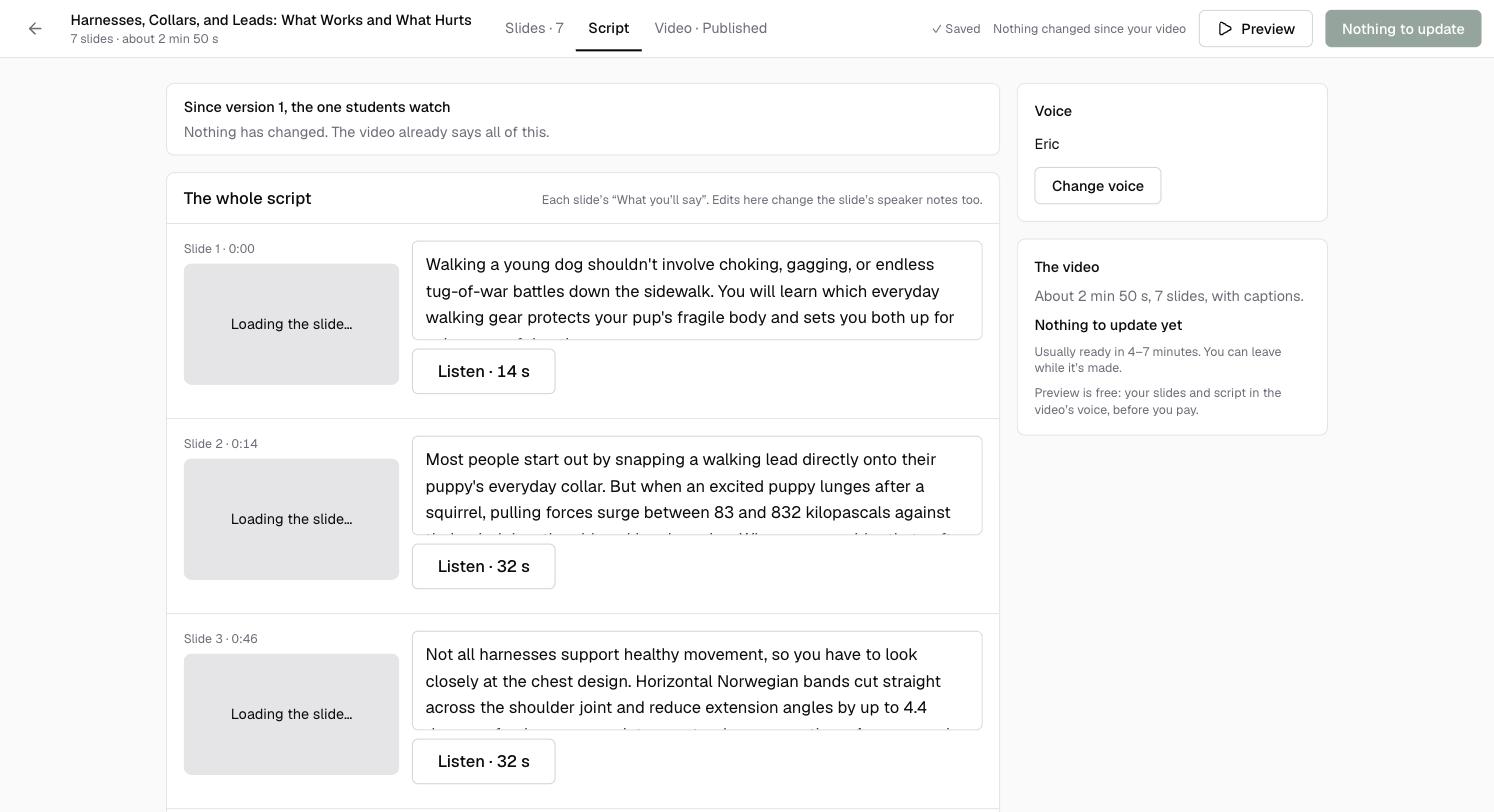
The video workspace has three tabs along the top: Slides, Script and Video. It opens on Script, headed The whole script: every slide down the left, with what will be said over it beside it.
Change any words you like. As the page says, "Each slide's “What you'll say”. Edits here change the slide's speaker notes too." Your changes save as you type.
Click Listen under any slide to hear it in your narrator voice before you commit. Leave a slide's box empty and it shows silently for a few seconds.
Check the voice
The Voice panel on the right names the narrator. To pick another, click Change voice. The full walkthrough is in How to choose the voice that narrates your videos.
Preview it for free
Click Preview at the top. It plays your slides and script in the video's voice, timed as the real video will be, so you can watch the whole thing before you pay. As the panel says: "Preview is free: your slides and script in the video's voice, before you pay."
Create the video
When it reads right, click Create video. Knola asks you to confirm before anything is charged, and tells you up front what it will cost in AI credits.
A video usually takes a few minutes. You can leave the page while it is made; the lesson shows Making your video with the stage it is at, and Knola emails you if anything goes wrong.
Do I have to record my own voice?
No. Knola narrates the video in one of its six voices. If you would rather it sounded like you, clone your voice in ElevenLabs and connect it: see How to narrate videos with your own ElevenLabs voice.
Does making a video use AI credits?
Yes. Reading the script, listening to slides and the preview are free. Making the video uses AI credits, and Knola shows you the amount and asks you to confirm first. If it fails, the credits come back automatically.
Can I change the video after it is made?
Yes. Edit the script or the slides and make it again; only the slides whose words changed are narrated again. See How to edit a video and make it again.