

How to publish, share and download a lesson video
Show a finished video to your students when you are ready, share it with anyone through a link or an embed, and download the video file.

 By Knola4 min read
A video Knola makes waits as a draft. Students see nothing until you choose to show it, so you can watch it first. After that you can share it beyond your course, embed it on your own site, or download it.
Show it to students
When a video finishes, the lesson says "Your video is made. Students do not see it until you show them." Watch it, then click Show it to students. You can undo straight away if you change your mind.
The line under the lesson title then reads, for example, "Students see Knola's video, the written lesson and the quiz". On the video workspace the Video tab says Students watch this video.
Versions and check questions
Under the player on the lesson, a row holds Versions, How students are doing and Captions. Versions lists every video you have made for the lesson and which one students watch.
Check questions pause the video for one quick question. Require the check questions decides whether students must answer to carry on or can skip them.
Share it with anyone
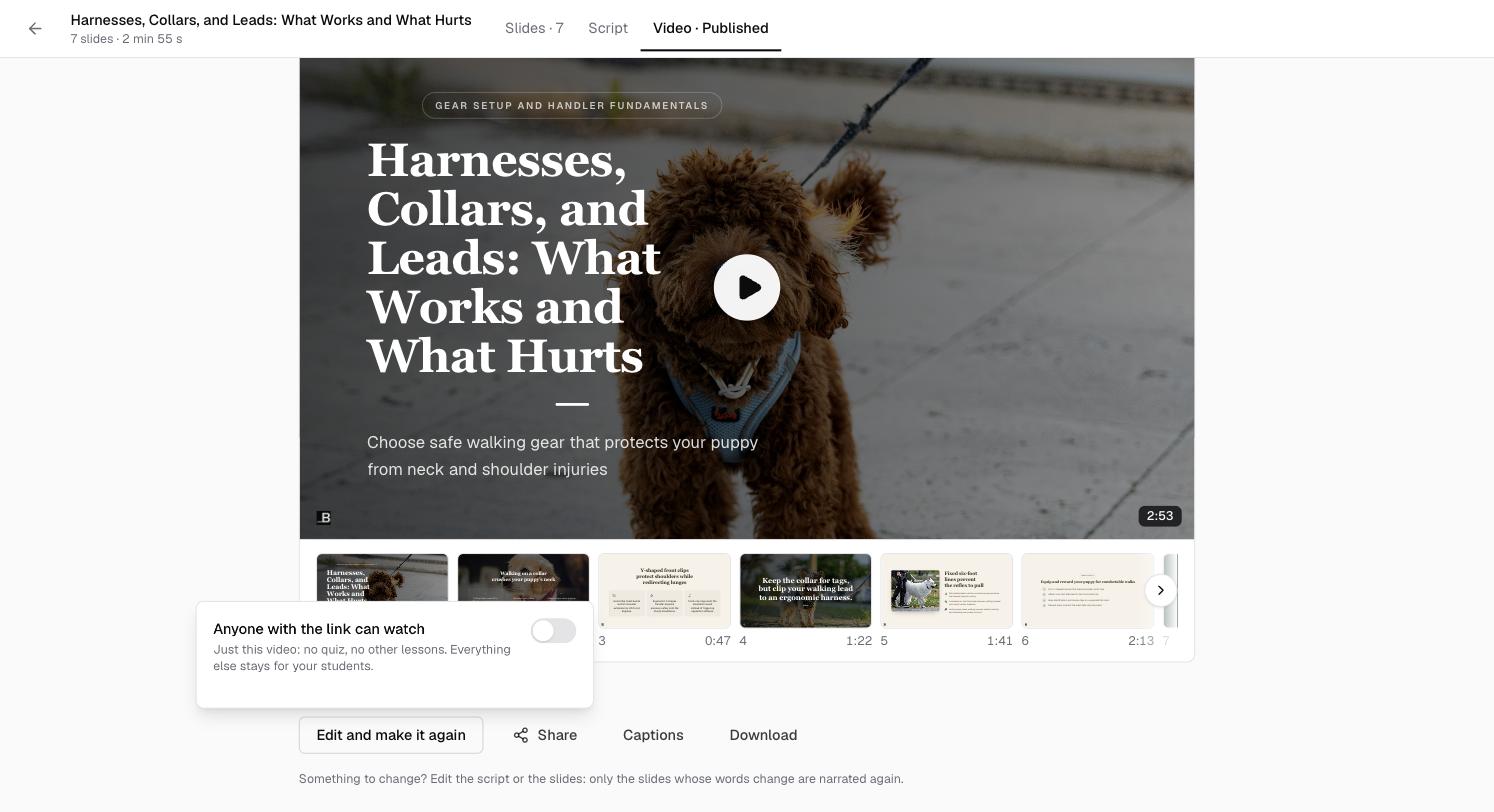
On the video workspace, click Share and switch on Anyone with the link can watch. As it says, it shares "Just this video: no quiz, no other lessons. Everything else stays for your students."
You get a Link to a page in your school's branding, and Embed on your website with Copy embed code for your own site or a sales page. Switch it off and the link stops playing.
Download it
Click Download on the video workspace or on the lesson to save the video file, for YouTube, social media or anywhere else.
Take it down
On the lesson, the ⋯ menu by the video has Remove from lesson. Students no longer see it and its public link stops working. The video itself is kept.
Will students see a new version as soon as it is made?
No. Each new version arrives as a draft, and students keep watching the one you published until you show them the new one.
Does a shared link show my whole course?
No. It plays just that video, on a page in your school's branding. No quiz, no other lessons.
Can I put the video on my sales page?
Yes. Switch on sharing, click Copy embed code and paste it into an HTML block on any page, or into your own website.