

Every settings page, and how to find a setting
A map of Knola Settings: what lives on each page, who can see it, and the fastest way to find one setting.

 By Knola3 min read
Settings sits at the foot of the admin sidebar, just above your AI credits. Its pages are grouped into four: Your school, Money, You and Data.
Search with Find a setting
Not sure which page holds it? Type in Find a setting at the top right, for example "logo", "password" or "web address", and jump straight to it.
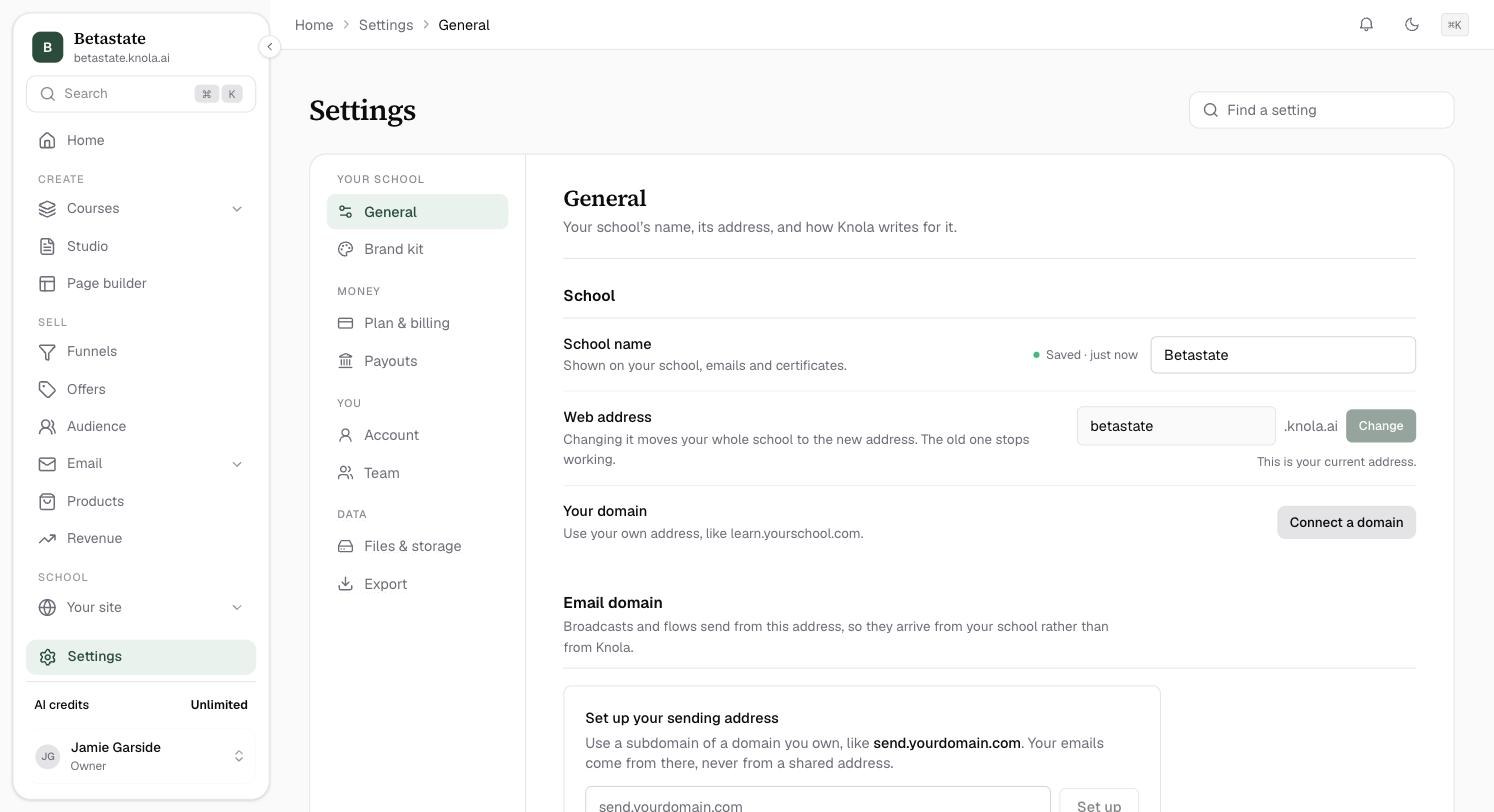
Your school: General and Brand kit
- General: "Your school's name, its address, and how Knola writes for it." The School name, your Web address (see How to change your subdomain), and How Knola writes: Where your students are, School language and Measurements, which set the spelling, money, dates and examples in everything Knola writes. Deleting a school is at the foot of this page.
- Brand kit: your logo, colours and fonts. See How to set your brand.
Money: Plan & billing and Payouts
- Plan & billing: "What you're on, your AI credits, and how you pay." See Your plan, billing and AI credits.
- Payouts: "Where the money from your sales goes, and what Knola takes." See How to connect Stripe.
Only the school owner sees these two pages.
You: Account and Team
- Account: "Who you are on Knola, and how you sign in." See How to manage your account and sign-in.
- Team: "Who helps run your school, and what each person can do." See How to add your team.
Data: Files & storage and Export
- Files & storage: "The space your videos and files take up, and what you've deleted." See How to check your storage and restore deleted files.
- Export: "Everything you make on Knola is yours. Take a copy any time." See How to export everything.
Your narrator voice
The voice that narrates your videos, and the connection to your own ElevenLabs account, are also in Settings, in their own voice area. You can change the voice from any video screen too. See How to choose a narrator voice.
Where did Emails go?
The emails your school sends are now under Students → Emails in the sidebar. See How to customise the emails Knola sends for you.
Why can a teammate not see some settings pages?
Each role sees only what it can change. An instructor sees Account only. An admin sees everything except Plan & billing and Payouts, which are the owner's.