

How to check your storage and restore deleted files
See how much space your videos and files use, which courses use the most, and bring back a file you deleted in the last 30 days.

 By Knola2 min read
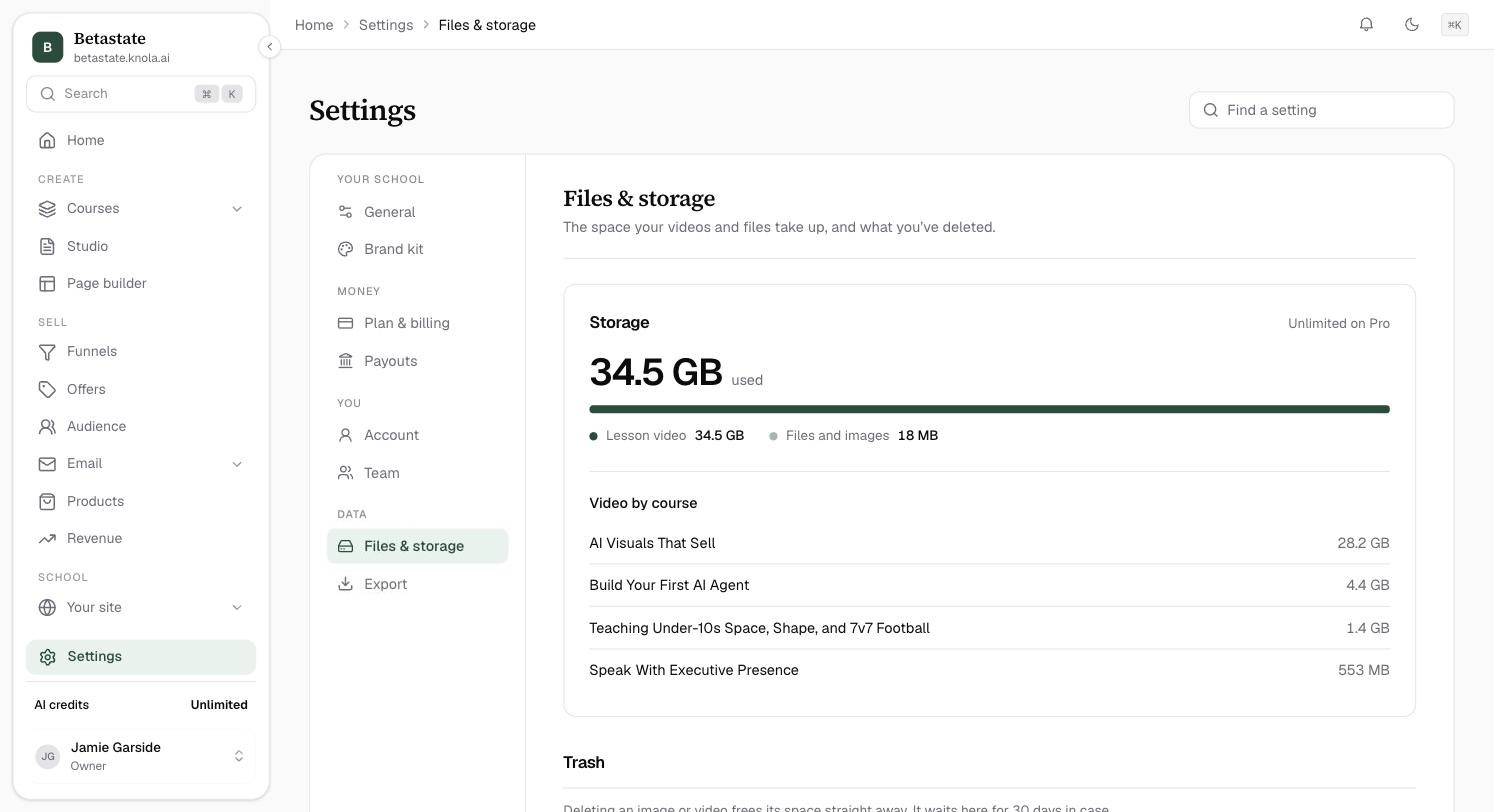
Files & storage, in Settings, is "The space your videos and files take up, and what you've deleted."
Check your storage
Storage shows the space you have used against your plan: 10 GB on Solo, 50 GB on Studio, and Unlimited on Pro. The bar splits it into Lesson video and Files and images, and Video by course shows which courses use the most.
Restore something from the Trash
Deleting an image or video frees its space straight away. It then waits in Trash for 30 days in case you change your mind. Click Restore to put it back in your library. Items marked Purges soon are close to being removed for good.
How do I free up space?
Delete videos you no longer use; the space comes back straight away. Video by course shows where most of it goes.
Can I download all my videos?
A one-click download is on the way. Until then, email [email protected] and Knola will send you everything you uploaded. See How to export everything.