

How to import a course from a Word document, PDF or Markdown
Turn a course you have already written into modules and lessons in one pass: Word, Google Docs, PDF, Markdown or pasted text, with every word kept as written.

 By Knola4 min read
If your course already exists as a document, you don't need to type each module and lesson and paste the text in one at a time. Knola reads the document's headings, proposes the whole curriculum, and shows it to you before anything is created. Your words go in exactly as written: nothing is rewritten, summarised or shortened, and no credits are used.
Lay out your document with headings
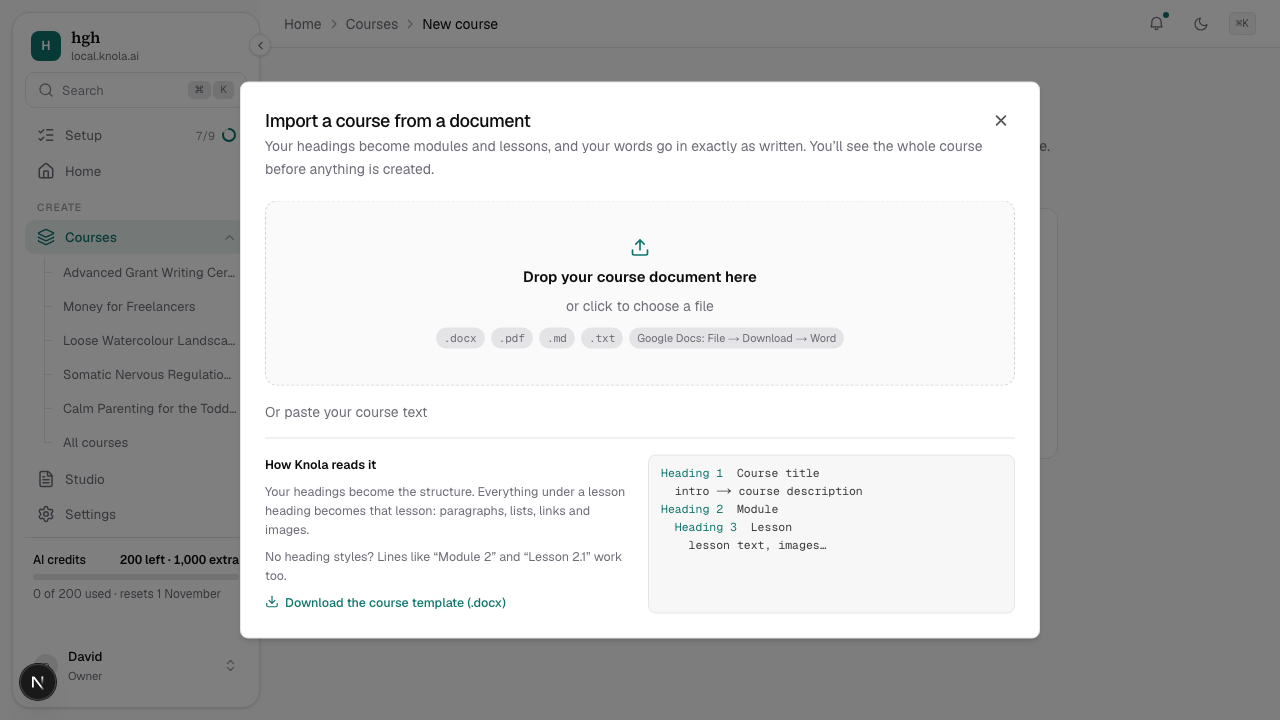
Knola builds the course from your heading styles. The usual layout is:
- Heading 1: the course title, once at the top. Any text before the first module becomes the course description.
- Heading 2: a module.
- Heading 3: a lesson. Everything under it, down to the next heading of the same level, becomes that lesson: paragraphs, lists, links and pictures.
- Heading 4: a section inside a lesson.
Other layouts work too: Heading 1 for modules and Heading 2 for lessons, or no heading styles at all with lines like "Module 2: Budgets" and "Lesson 2.1". Want a starting point? Download the course template.
Choose the file
For a new course, go to Courses → New course and click Already written your course? Import a document. To add modules to a course you already have, open it and click Import document at the top of the Curriculum.
Drop the file in, or click to choose it. Knola reads Word (.docx), PDF, Markdown (.md) and text (.txt) files. For Google Docs, use File → Download → Microsoft Word first. You can also click Or paste your course text.
Review the course
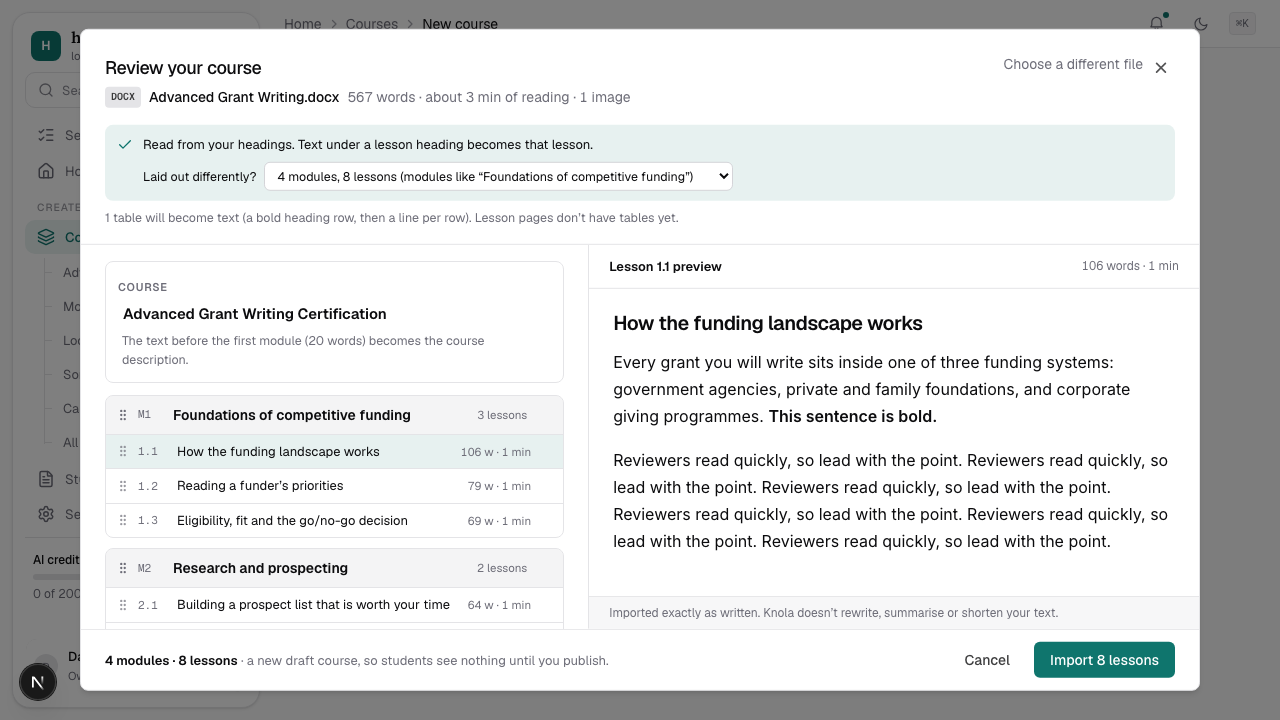
Before anything is created you see the whole course: every module and lesson with its word count, and a preview of each lesson exactly as it will import. A line at the top says how Knola read the file. If it is amber, Knola worked the headings out for itself (a PDF, or a Word file without heading styles), so check the titles.
- Click a title to rename it. Drag the ⋮⋮ handles to reorder modules and lessons.
- The bin leaves a lesson or module out of the import.
- A very long lesson shows Long · split?. One click splits it at its own sections.
- If your document uses its headings differently, change Laid out differently? and the course is read again.
Import it
Click Import … lessons. Knola creates the modules and lessons, then uploads any pictures from the document into their lessons. Changed your mind? Undo import on the message that appears removes everything the import added.
Each lesson opens as ordinary written lesson content, marked "Imported from your file". From there you can edit it, make slides or a narrated video from it, or add a quiz.
Will Knola change my wording?
No. The import keeps your text exactly as written. AI is only involved if you later choose to make slides, a video or a quiz from a lesson.
What happens to tables and pictures?
Pictures in a Word file are uploaded with their lesson. Lesson pages don't have tables yet, so a table becomes a bold heading row followed by one line per row, keeping every word. Pictures inside a PDF aren't imported; add them from the lesson page.
My PDF is scanned pages. Can I import it?
Not directly: a scanned PDF is pictures of text, with no text to read. Import the original Word or Google Docs file instead.
Can I import one document into a single lesson?
Yes. On a lesson, Upload a file takes a Word, Markdown or text file and turns it into the lesson's text. A PDF asks whether to show the file itself or use its text as the lesson.