

How to add a summary, topics and learning objectives
Tell students what a lesson is for: a one-line summary above the body, topic tags they can browse by, and learning objectives in the lesson.

 By Knola5 min read
A student opening a lesson wants to know two things before they commit: what this is about, and whether it is the bit they need. Three small pieces of a lesson answer that, and each behaves differently.
Write the summary
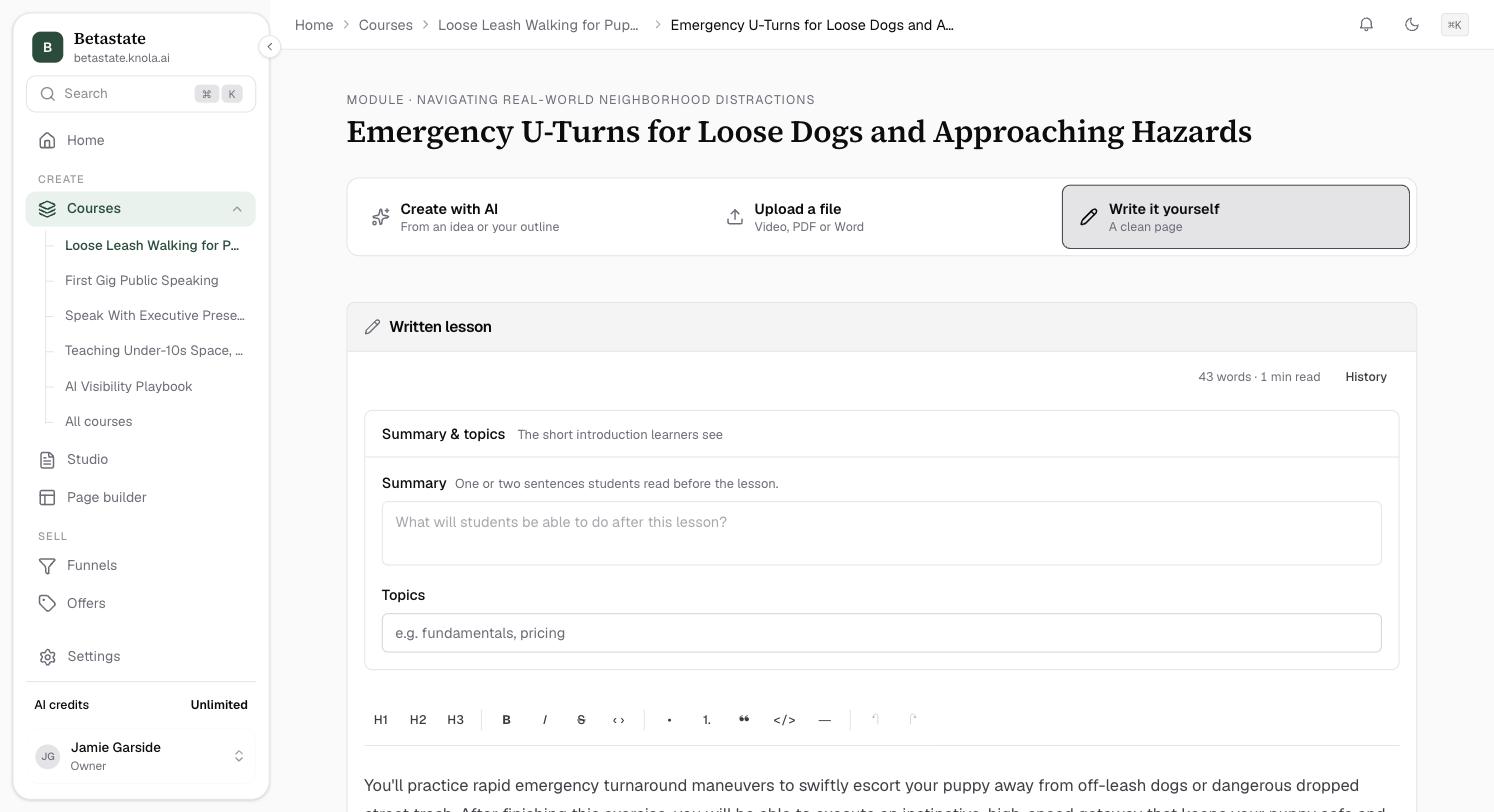
Go to the Read section on the lesson page: the written lesson. If it is still empty, click Write it first. At the top, Summary & topics ("The short introduction learners see") holds two fields. It is open while the summary is empty; otherwise click it to open it. The first field is Summary, and the hint beside it says what it is for: "One or two sentences students read before the lesson."
Students see it as a highlighted callout on the lesson, after the video and before your writing, so it is the first thing they read. Keep it to the promise of the lesson rather than a description of it: "By the end you'll have a price on your offer" beats "This lesson covers pricing."
Tag it with topics
Directly below sits Topics. Type your tags separated by commas, up to eight, and they save themselves like everything else in the editor.
Students see topics as small badges under the lesson title, and each badge is a link. Clicking one opens every lesson in your school tagged with that topic, grouped by course, which turns a course library into something people can search sideways through.
- Eight topics is the limit. A ninth is dropped when the lesson saves.
- Tags are matched exactly, so "Pricing" and "pricing" become two separate topics. Pick one style and stick to it.
- Only published lessons in published courses appear when browsing by topic, so drafts stay private.
Or let AI fill both in
You do not have to write either by hand. When Knola writes a lesson or writes it from your video, or from an attached document, Knola fills in the summary and the topics along with the lesson body. Both stay fully editable afterwards, and most people tighten the summary by a few words and leave the topics alone.
Add learning objectives to the lesson itself
Objectives are different from the other two: they are a block inside your lesson, not a field beside it. Put the cursor on an empty line, type /, and choose Learning objectives, described in the menu as "List of objectives at the top of a lesson". You can also select an existing block, open its drag handle menu and pick Learning objectives under Turn into.
The block appears with its own heading and two starter lines to replace. Each line is one objective, and pressing Enter adds another. Students see it as a bordered panel wherever you put it, which is usually straight after the summary.
Where does the summary show up for students?
As a callout at the top of the lesson, after the video and before the body, labelled Summary. It is also the description shown under the lesson when someone browses by topic. Leave it blank and the callout simply does not appear.
How do students browse lessons by topic?
Every topic badge on a lesson is a link, and the learner top bar has a Topics entry listing every topic in your school with how many lessons carry it. Both only ever show published lessons.
How many topics can one lesson have?
Up to eight. Add a ninth and it is dropped when the lesson saves, so keep the list to the tags you would actually want a student to browse.