

Here's what taking your quiz is like
Follow a student through one of your quizzes: how questions are marked, what a pass unlocks, and what a required quiz blocks until they get there.

 By Knola5 min read
You build a quiz in the lesson editor, covered in quizzes that gate progression. This page is the other side of it: exactly what your student sees, so you can judge whether to make a quiz required and where to set the pass mark.
Starting it
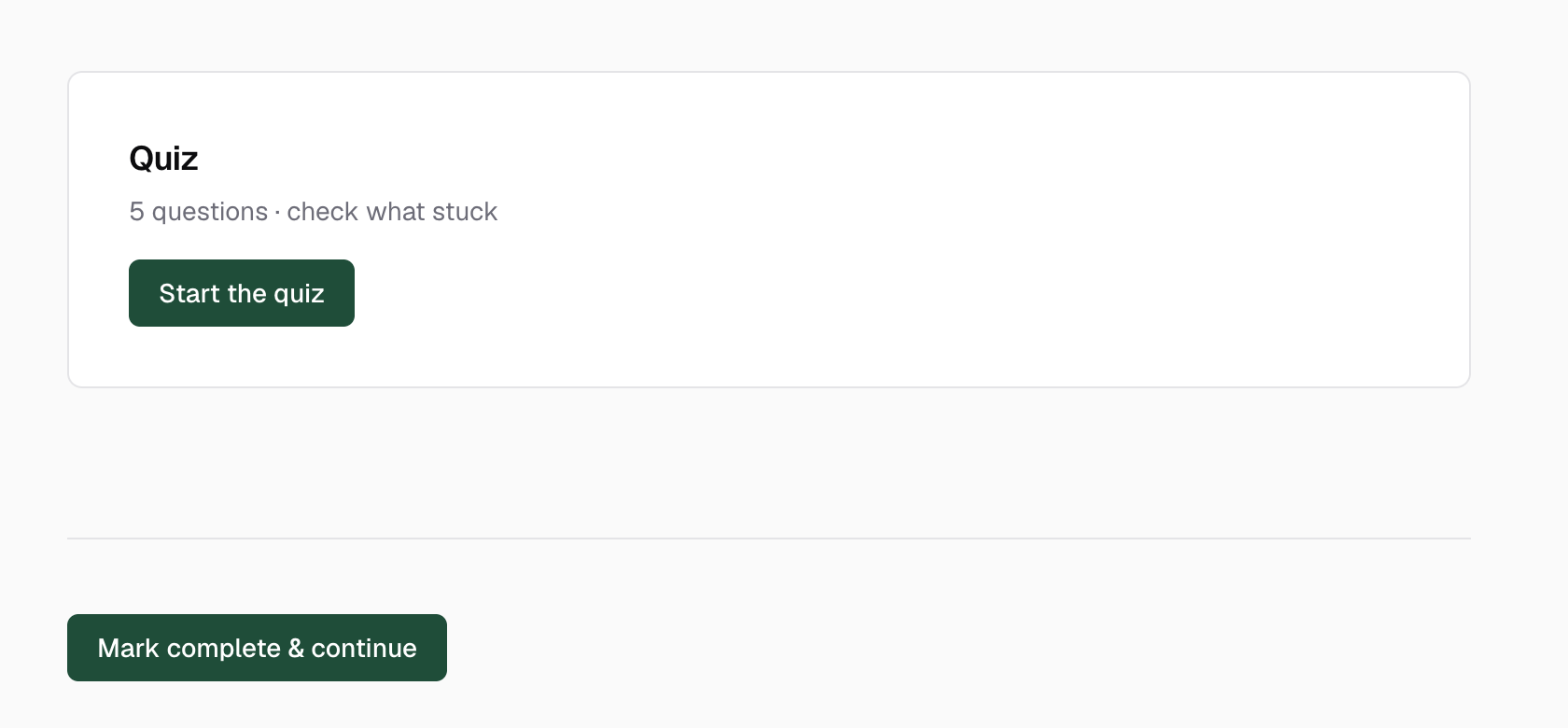
The quiz sits at the bottom of the lesson, after your writing and the questions panel. It opens with the heading Quiz and a line telling the student how many questions there are, and either that they need a given score to complete the lesson, or simply "check what stuck" when it is optional practice.
The button reads Start the quiz, or Retake the quiz if they have been here before, in which case their best score to date is shown beside it.
Answering, one question at a time
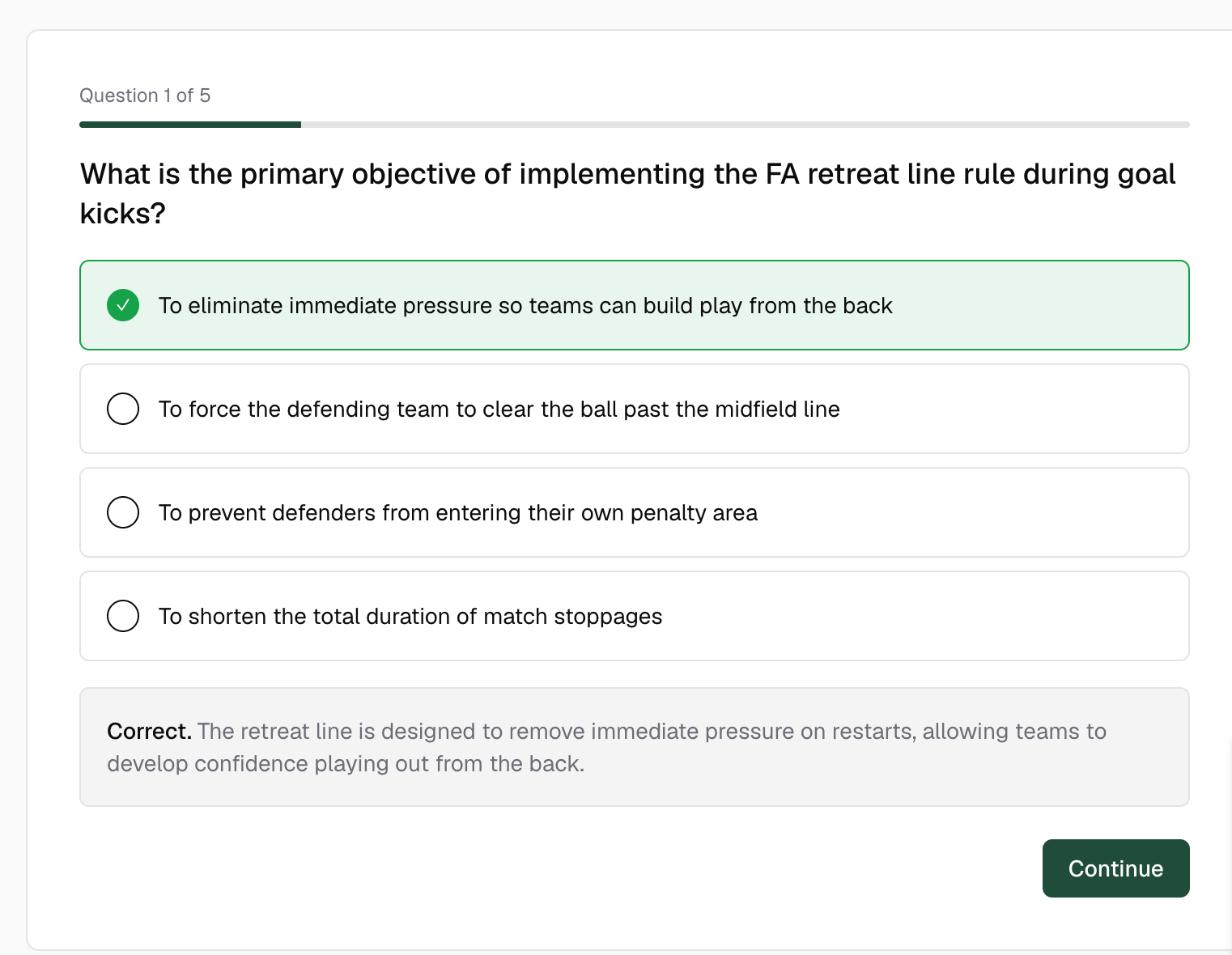
Questions come one at a time, numbered, with a progress bar above them. Multiple-choice questions take one answer; a multi-select question is labelled Select all that apply and needs every correct option ticked, with no marks for getting some of them.
They click Check answer and the question locks. Correct options turn green with a tick, anything they picked wrongly turns red, and your explanation appears underneath headed either "Correct." or "Not quite." Then Continue moves on, and Finish quiz ends the last one.
The result
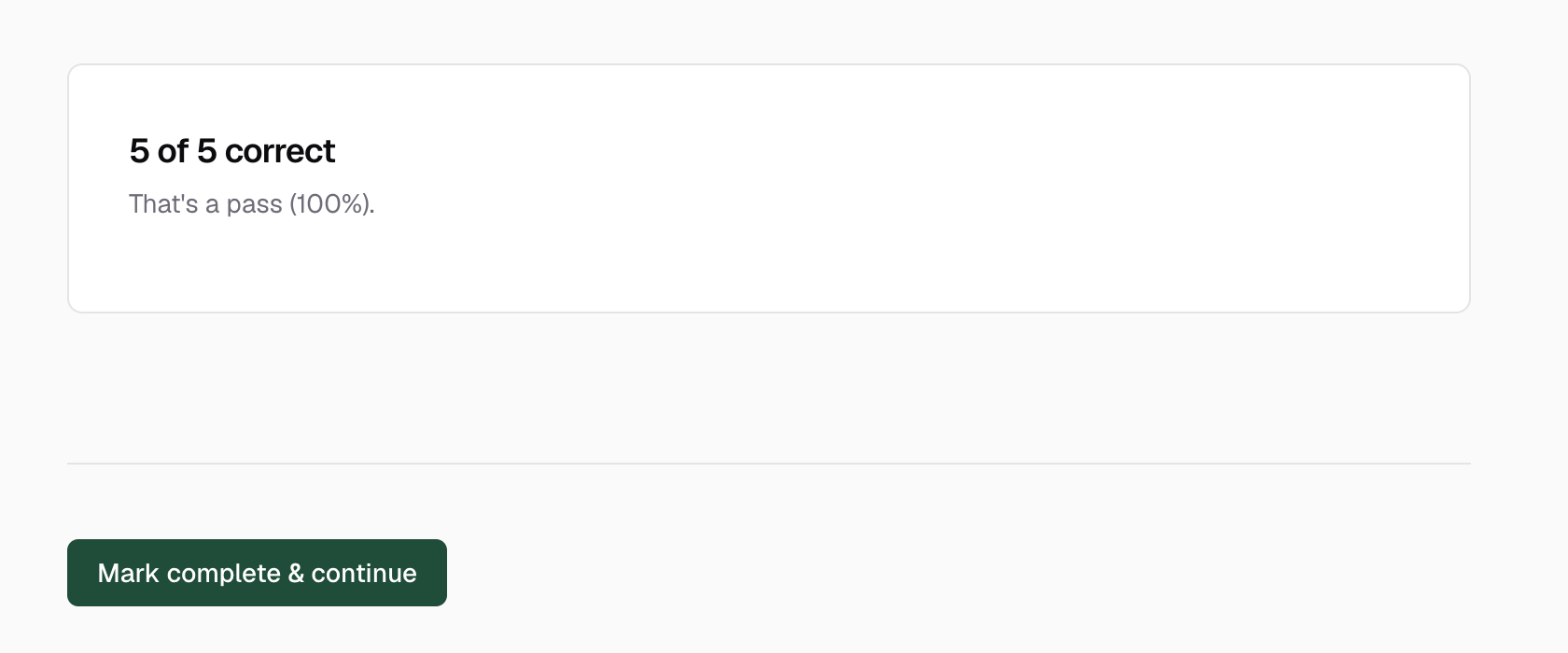
At the end they see how many they got right out of the total, and one of three things underneath:
- A pass on a required quiz: Lesson complete. The lesson is marked done for them.
- A pass on an optional quiz: their percentage, with the lesson left for them to mark complete themselves.
- A fail: the score they needed, a reminder that the lesson content is right above, and a Try again button that restarts from question one.
If that pass also finishes the course, their certificate is issued on the spot and they are shown a link to it.
What a required quiz actually blocks
When you switch on Students must pass to complete this lesson, the Mark complete button at the foot of the lesson is replaced by a line reading Pass the quiz to complete this lesson, linking down to the quiz.
It gates completion, not reading. The student can still read the whole lesson, watch the video and move to the next one. What they cannot do is tick this lesson off, which means it also holds up course completion and their certificate.
How many times can a student retake a quiz?
As many times as they like. There is no attempt limit and no waiting period, and their best attempt is the one that counts, so failing never costs them anything but time.
Does a required quiz stop students reaching the next lesson?
No. It stops them marking that lesson complete, which in turn holds up finishing the course and earning a certificate. The lessons themselves stay open, so nobody is locked out of your content.
What do students see after answering a question?
The correct answers are revealed immediately, with anything they got wrong marked in red, and your explanation shown underneath. They cannot change an answer once it has been checked.