

Here's what visitors see on your school home page
Understand every section of your school home page (hero, courses, testimonials, instructor) and where each one is controlled in your admin.

 By Knola5 min read
The root of your subdomain is your school home page: the page a visitor lands on when someone shares your link. It assembles itself from things you set in three admin screens, and every section that has no content simply doesn’t appear. This guide walks the page top to bottom and names where each piece is controlled.
Header: your name, logo, and sign in
The top bar shows your school name and logo. Visitors who aren’t signed in get Sign in and Sign up buttons; signed-in students get their account menu and notifications instead. The logo comes from Branding. There’s nothing separate to configure here.
Hero: identity, tagline, and the first call to action
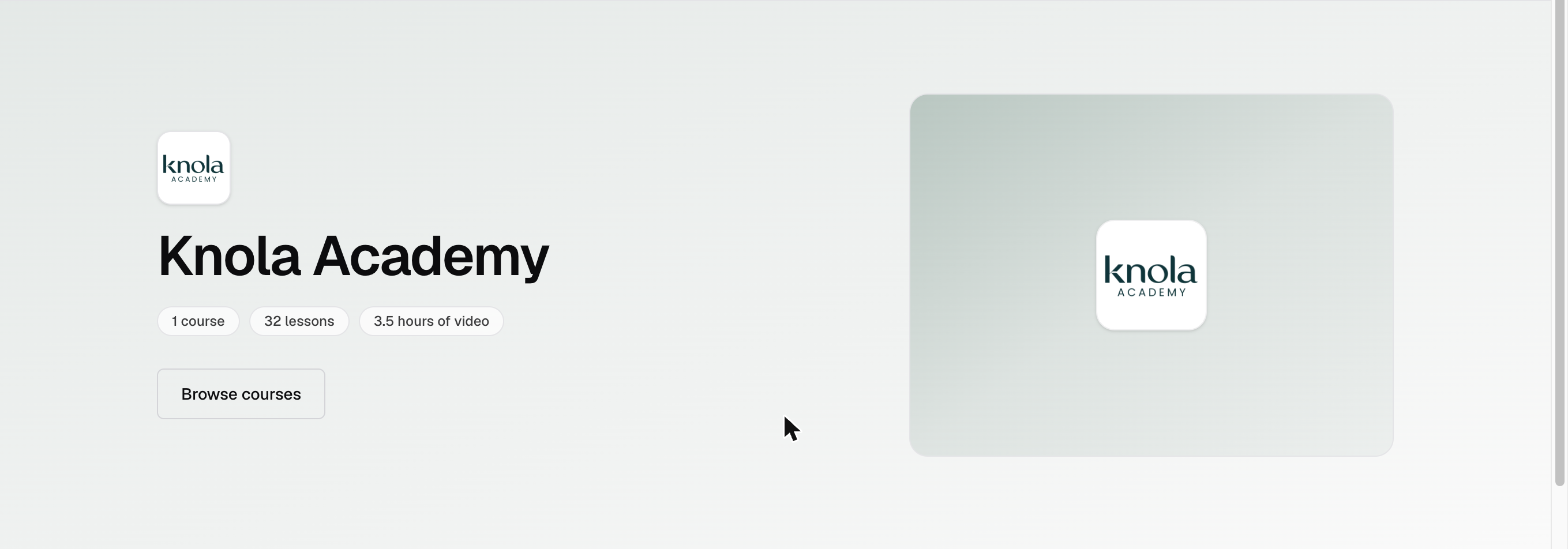
The hero carries your school name, your tagline, and a row of stat chips counted live from your published content: course count, lesson count, and hours of video. Visitors see a Start learning button (it leads to sign-up) and a Browse courses link that scrolls to the course grid. If you’ve set a website, it links there too.
On desktop, the right side shows your hero image. With no hero image set, a branded placeholder appears in your school’s colour instead. The page never shows a blank or broken banner. The tagline and hero image are set on the School page editor; the colour comes from Branding.
The course grid, with search once you grow
Only published courses you’ve listed under Courses on your home (on the School page editor) appear here. Featured courses get their own Featured section, led by a large Start here card; the rest appear under All courses. Once six or more courses are listed, a search box appears above the grid automatically.
- A New badge appears on courses published within the last 30 days.
- A Bestseller badge marks your single most-enrolled course, once it has at least 5 enrolments.
- Cards show the course’s live price. When a funnel offer covers the course, the offer’s price is what shows, so the card always matches checkout.
Sign-up card and the email capture form
Visitors see a sticky Join {your school} card with your content stats and a Sign up to start button. Further down, a lead capture form (“Not ready to enrol?”) offers to join your list. Every email it collects lands in your Audience automatically, with nothing to configure.
Why does a course not show on my school home page?
It must be published AND listed under Courses on your home on the School page editor. Draft courses never show; published-but-unlisted courses show only to students already enrolled in them.
Can I change the layout of the school home page?
The layout is fixed by design: you control the content, toggles, and branding, and sections without content simply don’t appear. For a fully custom layout, build a page in the page editor and share that instead.
Where does the "Trusted by N learners" number come from?
It’s your real enrolment count, counted live. You switch it on or off with the Social proof toggle, and it stays hidden until you actually have students.
Social proof: learner count, testimonials, instructor
Three optional sections build trust for visitors, each controlled by its own toggle on the School page editor and each shown only when it’s on AND has real content:
All three are edited in the School page editor. Signed-in students don’t see this pitch. It appears for visitors only.