

How to use the funnel canvas
Read the funnel canvas, add steps by role, wire what happens after each page, and spot problems before publish, all on one live board.

 By Knola5 min read
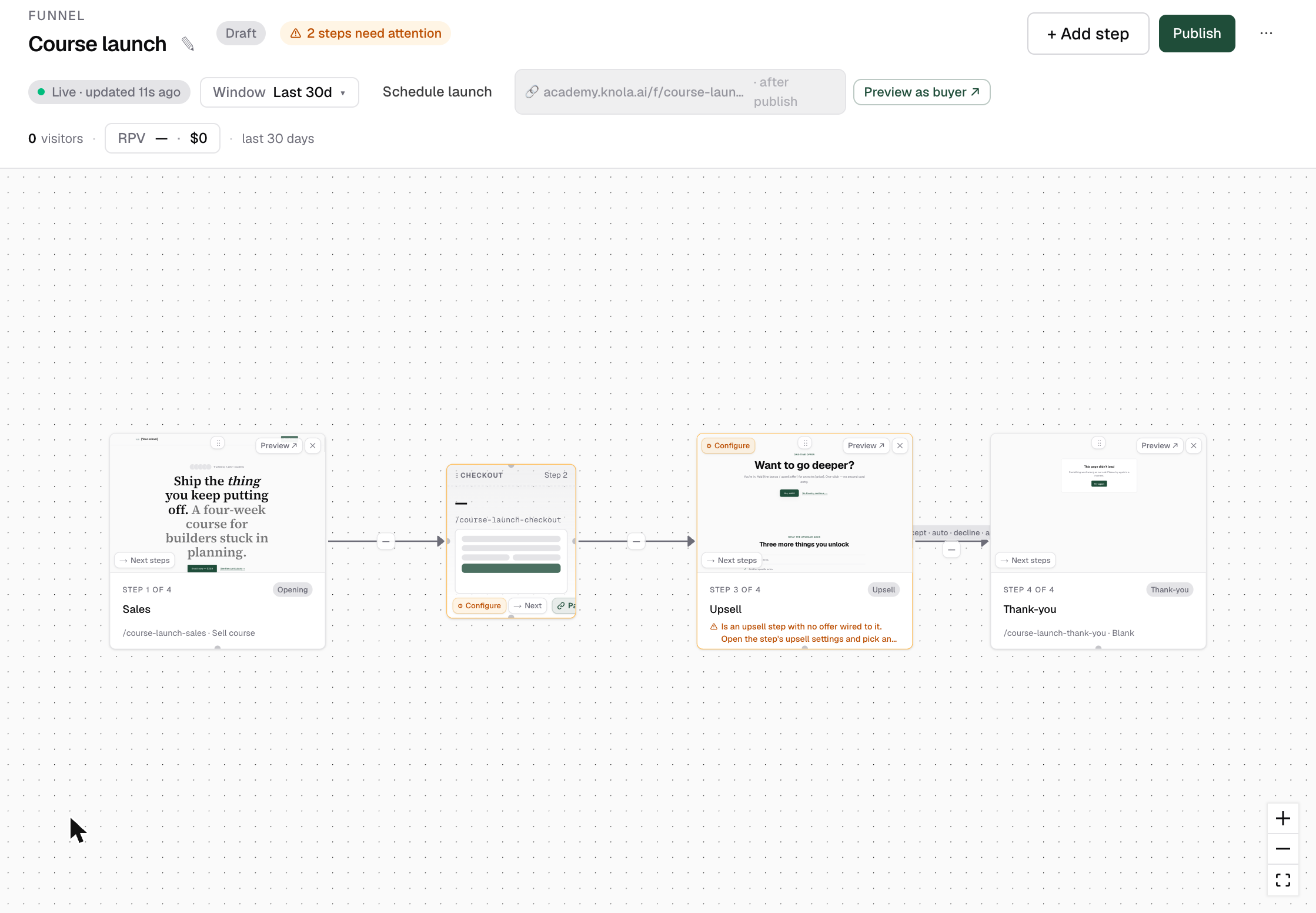
The canvas is the funnel’s home screen: every step is a card showing a live thumbnail of its page, and the arrows between cards show where visitors go next, with real conversion numbers on each arrow once traffic flows. It refreshes itself every 15 seconds while open.
Open a funnel
In your admin, go to Funnels and click a funnel’s name. The canvas opens with the steps laid out left to right in visitor order; a downsell branches onto a lower row beneath its upsell.
Read the step cards
Each card shows a scaled-down preview of the real page, the step number, a role chip (Sales page, Checkout, Upsell, Thank-you…), and the last part of the page’s web address. Click anywhere on a card to edit its page; Preview ↗ opens the live page in a new tab, and ✕ removes the step. The page is kept as a standalone page, and steps that pointed at it are re-wired to the next step.
A step with a structural problem gets an amber border and a short warning on the card (e.g. a checkout with no offer). The header sums these up (1 step needs attention) and the same checks run when you hit Publish, so fixing the amber flags as you build means publish just works.
Add a step
Click + Add step in the header and pick a role: Sales page, Lead capture, Checkout, Upsell, Downsell, Thank-you or Content page. Sales page, lead capture, checkout and thank-you are one per funnel. Once present, that menu item shows Already in this funnel (one per funnel). You can also choose Use an existing page to slot in a page you already built.
Knola places the new step where its role belongs in the chain and creates a starter page for it. Open the card to write it.
Wire where visitors go next
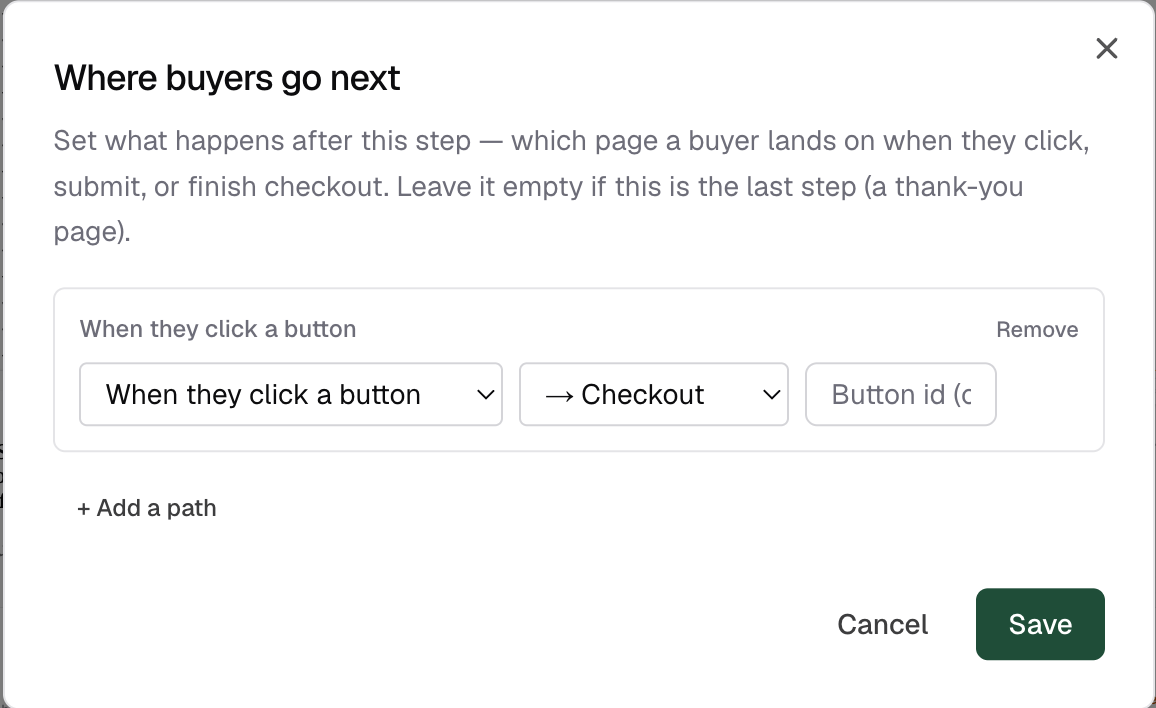
Every card has a Next steps button (bottom-left). It opens the Where buyers go next dialog, where you add one or more paths with + Add a path. Each path pairs a trigger with a destination step:
- When they click a button: optionally scoped to one button via Button id (opt) on pages with several CTAs.
- When checkout completes: with a Split into Purchased / Expired option to send buyers and timed-out visitors down different paths.
- When they submit the form: for lead-capture pages.
Leave a step with no paths if it is the last one. A thank-you page ends the funnel. Upsell accept/decline routing lives in its own dialog; if you leave those unwired, the canvas draws the automatic route to the next step, labelled auto.
Arrange the board (and reset it)
Drag a card by the ⋮⋮ grip at its top edge. Positions snap to a grid and are saved, so the board looks the same next visit. To go back to the automatic left-to-right layout, open the ⋯ menu in the header and choose Reset layout.
Preview the flow and watch the numbers
Preview as buyer ↗ in the header opens the funnel’s opening step in a new tab. It works before publish, showing drafts to you only. Once visitors arrive, each arrow carries its click-through rate (e.g. 72% · 132 of 183), money-moving arrows turn green with the amount charged, and the header shows visitors, total revenue and revenue per visitor for the selected time window.
How do I delete a step without losing its page?
Click ✕ on the card and confirm. The page is kept under Standalone in the page builder, and any steps that pointed at the removed step are re-wired to its next step. Steps can only be removed while the funnel is a draft.
Why does a step card show an amber warning?
The canvas continuously runs the same structural checks as publish: a checkout without an offer, a missing transition, a step nothing points to. Fix the flagged step and the warning clears; publish runs the same list, so a clean canvas publishes without surprises.
Are the conversion numbers on the arrows live?
Yes. The canvas refreshes its numbers every 15 seconds while open, and the time window selector in the header controls the period they cover.