

How to add upsells & downsells
Two ways to upsell after the checkout: a one-click offer charged to the card on file, or a traditional pitch page with its own checkout, plus a downsell branch.

 By Knola4 min read
An upsell is an offer shown right after the checkout, while the buyer is still saying yes. Knola gives you two ways to make it: the one-click upsell, where accepting charges the card saved at checkout with nothing to re-enter, and the traditional route, a normal pitch page after the checkout with its own buy button. This guide walks through both, starting with one-click, which converts best.
One-click: add an upsell step
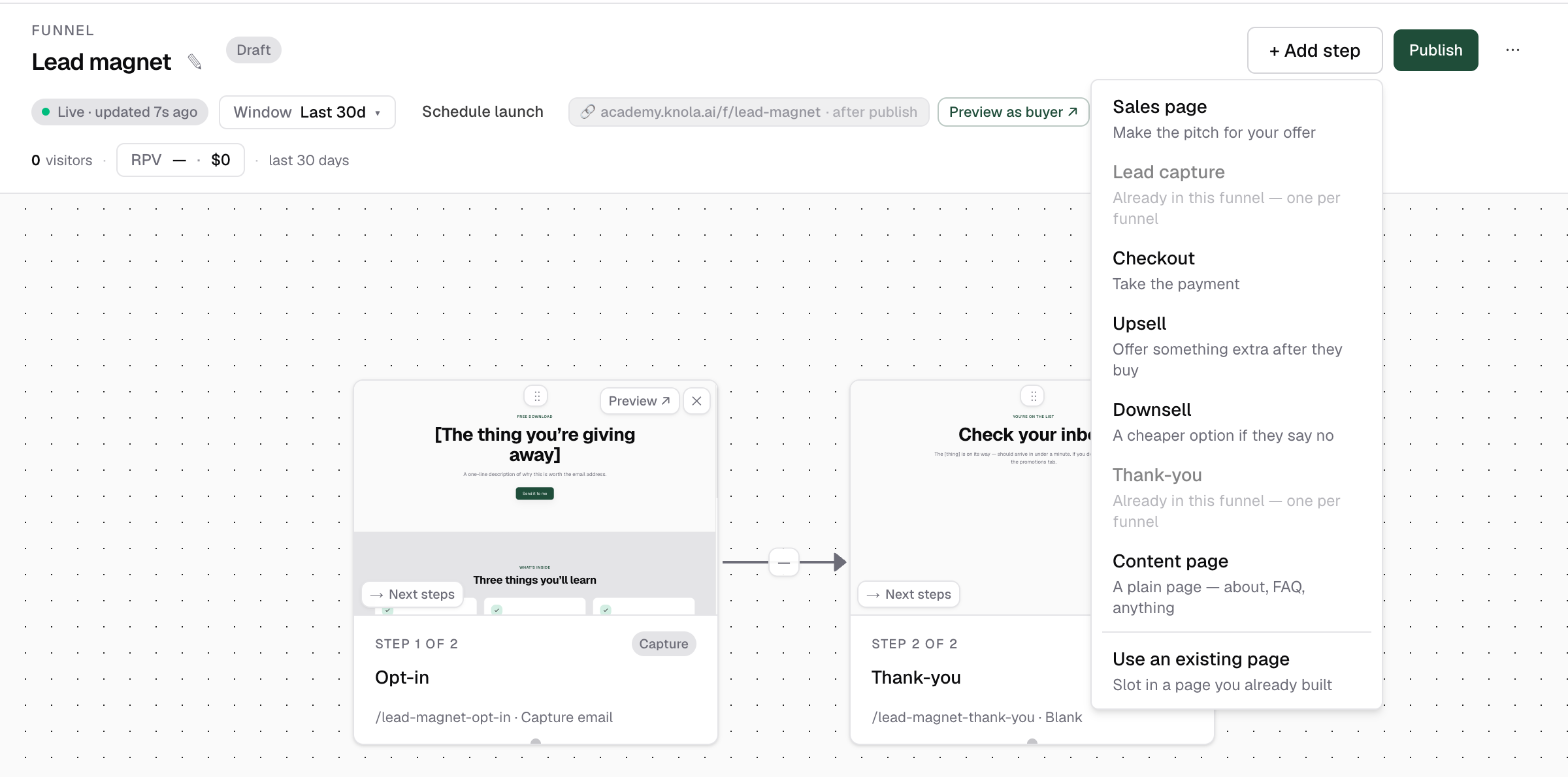
On the funnel canvas, click + Add step and choose Upsell ("Offer something extra after they buy"). Knola slots the step after your checkout with a starter page. (Funnels built from an offer usually arrive with the upsell already in place.)
Configure the offer and price
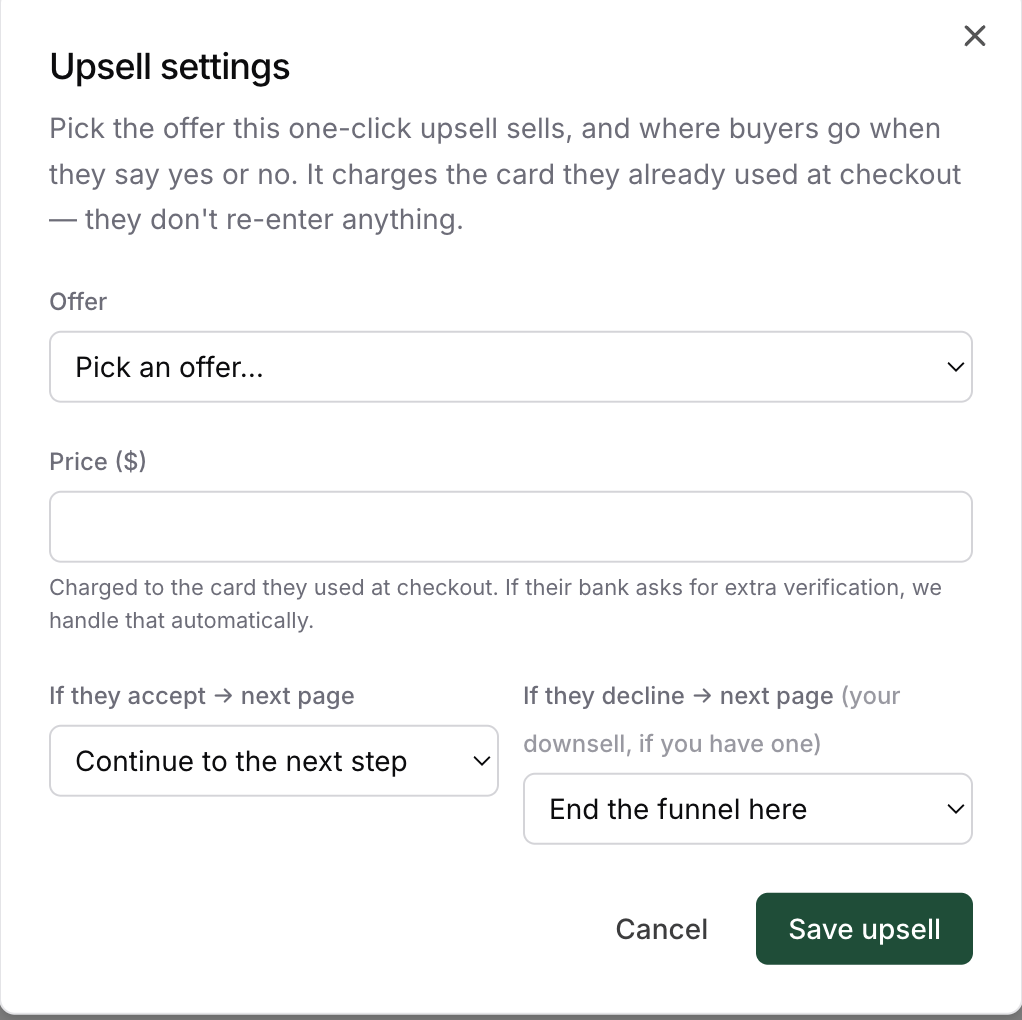
Click the ⚙ pill on the upsell card (amber Configure until set) to open Upsell settings:
- Offer: what this upsell sells, picked from the offers you have already created in your account: another course, a coaching add-on, a bundle, a template pack. If the thing you want to upsell doesn't exist as an offer yet, build the offer first, then come back and connect it here. Like checkouts, offers must be synced to Stripe; unsynced ones show (not synced) and are disabled.
- Price ($): pre-fills with the offer’s default; set an upsell-only price if you like. This is the amount charged to the card they used at checkout.
- If they accept → next page: default Continue to the next step.
- If they decline → next page: your downsell, if you have one; default End the funnel here.
Click Save upsell. The pill turns into Upsell with the offer and price on hover.
Write the pitch page
The upsell page itself is a normal page. Click the card to open it in the editor and make the pitch: a headline that frames the offer as the natural next step, a short video if you have one, benefit bullets, and a clear yes button with a visible no link underneath. Keep it one decision long; the buyer is mid-flow.
Add a downsell on the decline path
Once an upsell is configured, its card grows an Add downsell pill. Click it and Knola creates a downsell step, wires the upsell’s decline path to it, and drops it on a lower row of the canvas. The fork reads visually: accept continues along the top, decline dips down.
Configure the downsell exactly like the upsell (same ⚙ pill, same dialog), usually with a cheaper or slimmer version of the offer they just declined. A downsell is also one-click for the buyer.
How the one-click charge works
During the main checkout, Stripe saves the buyer’s payment method. When they click yes on your upsell, Knola charges that saved card immediately. The buyer never re-enters anything, and their course access updates on the spot. If their bank asks for extra verification (3-D Secure), it appears inline and is handled automatically; clicking accept twice never double-charges.
Check both paths on the canvas
The canvas labels the upsell’s outgoing arrows accept and decline so you can verify each destination at a glance; money-moving arrows turn green with the amount. Anything you leave unwired carries on to the next step in line automatically (shown with an auto label), so a buyer whose card was just charged is never stranded. Then run the flow yourself with Preview as buyer ↗.
The traditional route: a pitch page with its own checkout
An upsell doesn't have to be one-click. The traditional route is a normal page after the checkout that pitches the next thing, with an ordinary buy button:
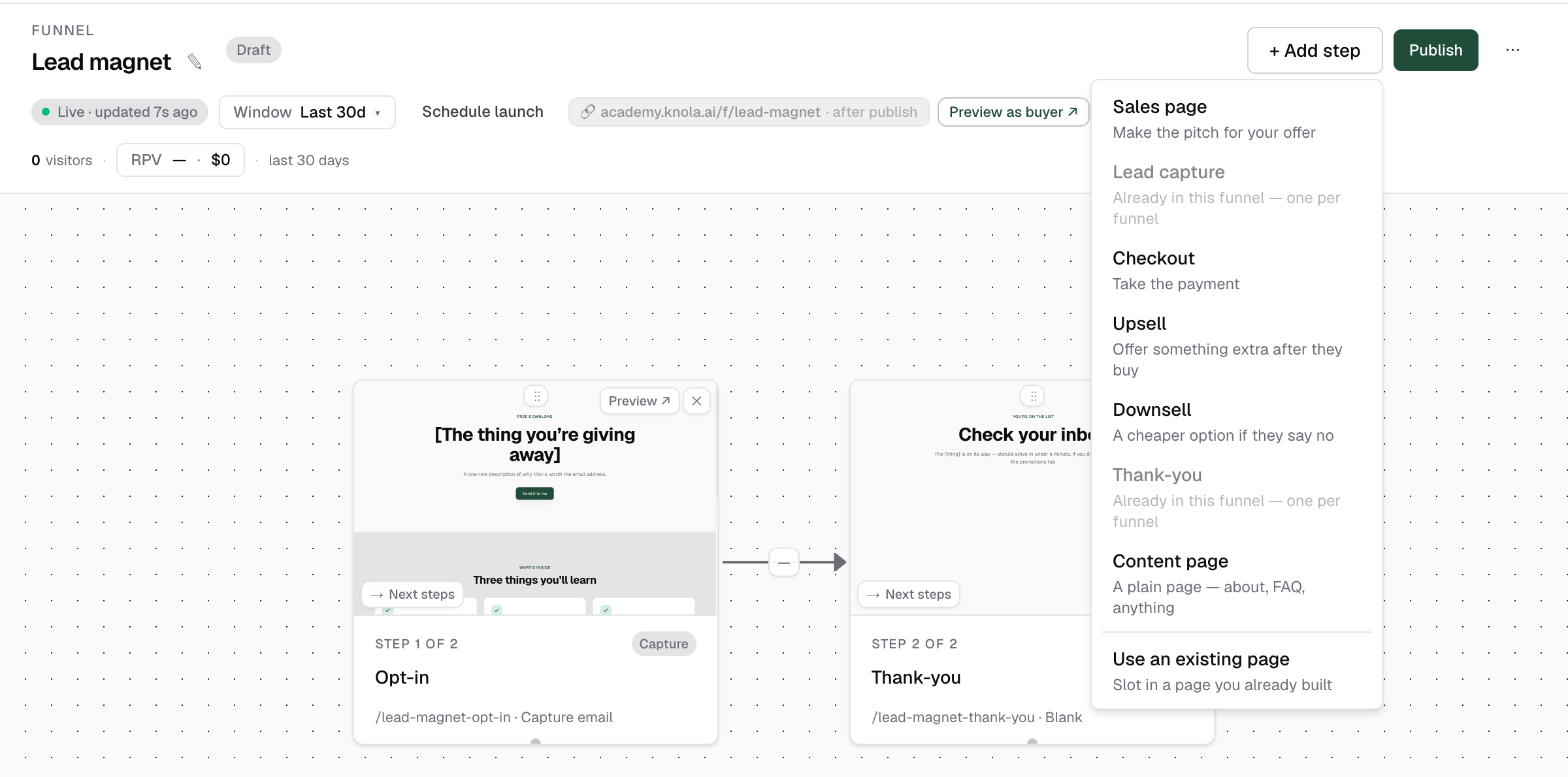
- On the canvas, click + Add step and choose Content page, then design your pitch on it like any other page. Already built the pitch? Choose Use an existing page instead ("Slot in a page you already built").
- Open the checkout's Where buyers go next settings and point the Purchased path at your new page.
- Give the page's buy button somewhere to go: another offer's checkout, using its payment link.
The difference for the buyer: on this route they go through an ordinary second checkout rather than a one-click charge. One-click converts better because there is nothing to re-enter; the traditional page wins when the next offer needs a full-length pitch, or when you want to sell something that lives outside this funnel.
Does the buyer re-enter card details on an upsell?
Not on a one-click upsell step, and that is the point: the card saved at the main checkout is charged directly when they click yes, with any bank verification appearing inline. On the traditional route (a pitch page with its own checkout), they do check out normally, card details included.
What happens if the buyer declines the upsell?
They follow the decline path you set in Upsell settings: a downsell if you added one, otherwise the next step (usually the thank-you page). Declining never blocks the purchase they already made.
Does an upsell have to be one-click?
No. The one-click upsell step is the highest-converting route, but you can also wire the checkout's Purchased path to a normal page that pitches another of your offers, with a buy button leading to its own checkout. That works like a traditional upsell: a second, ordinary purchase.
Can a downsell have its own downsell?
No. A downsell is the last branch. Its accept and decline paths both continue forward in the funnel, normally to the thank-you page. One respectful counter-offer is the pattern that converts; a chain of them burns goodwill.